The Complete Guide to Every Fandom
May 11, 2026
You've been there. You find a Reddit thread about a show you're obsessed with,…


Netflix is no longer just an American streaming platform — it has become a global entertainment hub with viewers from over 190 countries. Shows like Squid Game (South Korea), Dark (Germany), and Money Heist (Spain) prove that stories can cross borders, cultures, and languages.
But here’s the challenge: not everyone speaks the same language. That’s where subtitles and dubbing come in. Subtitles help you enjoy shows in their authentic voices, while dubbed audio allows you to listen in your native language.
In this comprehensive guide, we’ll explain:
When watching international content on Netflix, you generally have two options:
Our Tip: Watch in the original language with subtitles for the most immersive experience. Use dubbing only when you want ease and comfort.
Changing subtitles is very simple and works across all devices.
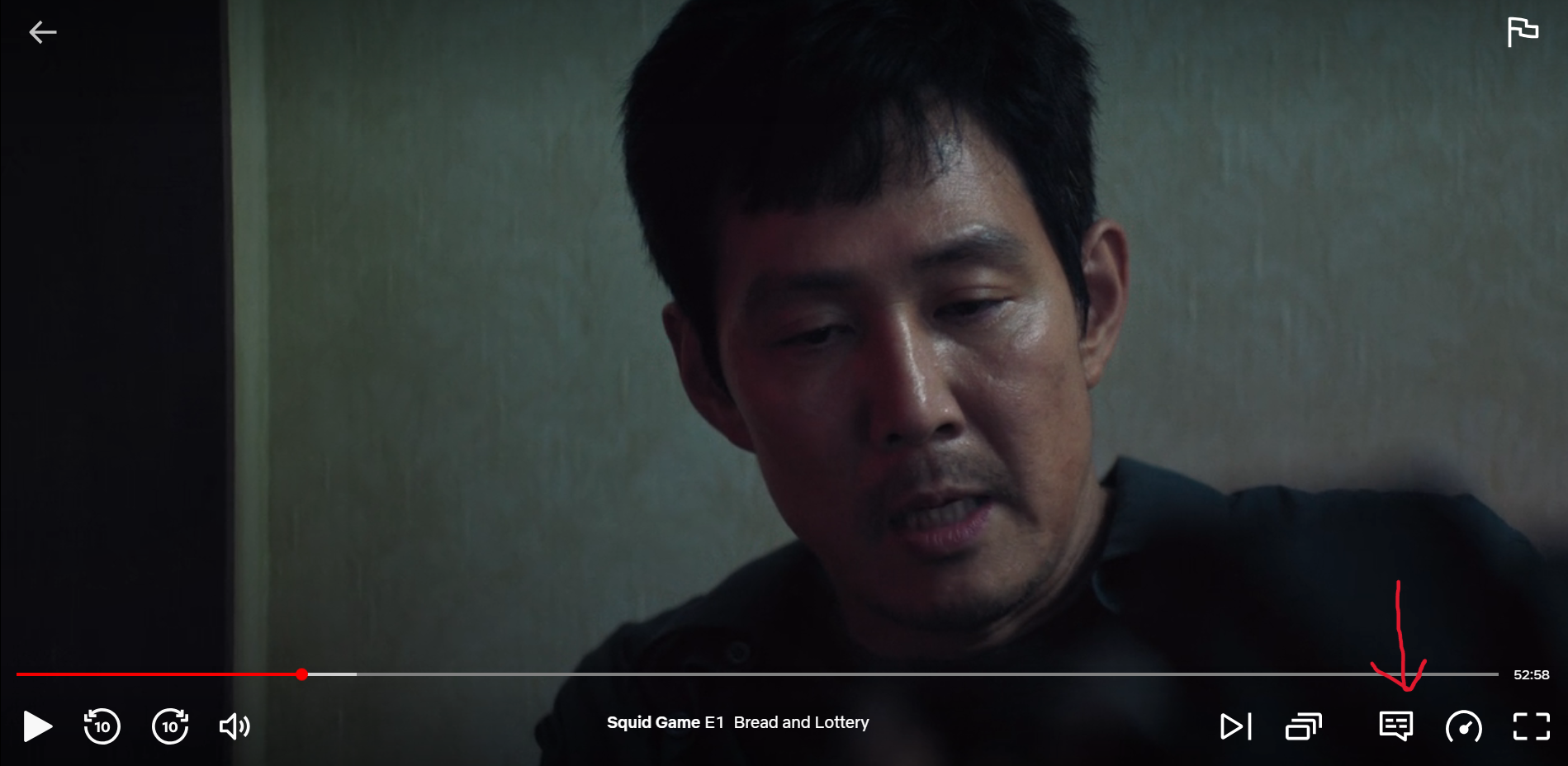
For example, if you are watching Squid Games, you can set the language to Korean and subtitles to English.
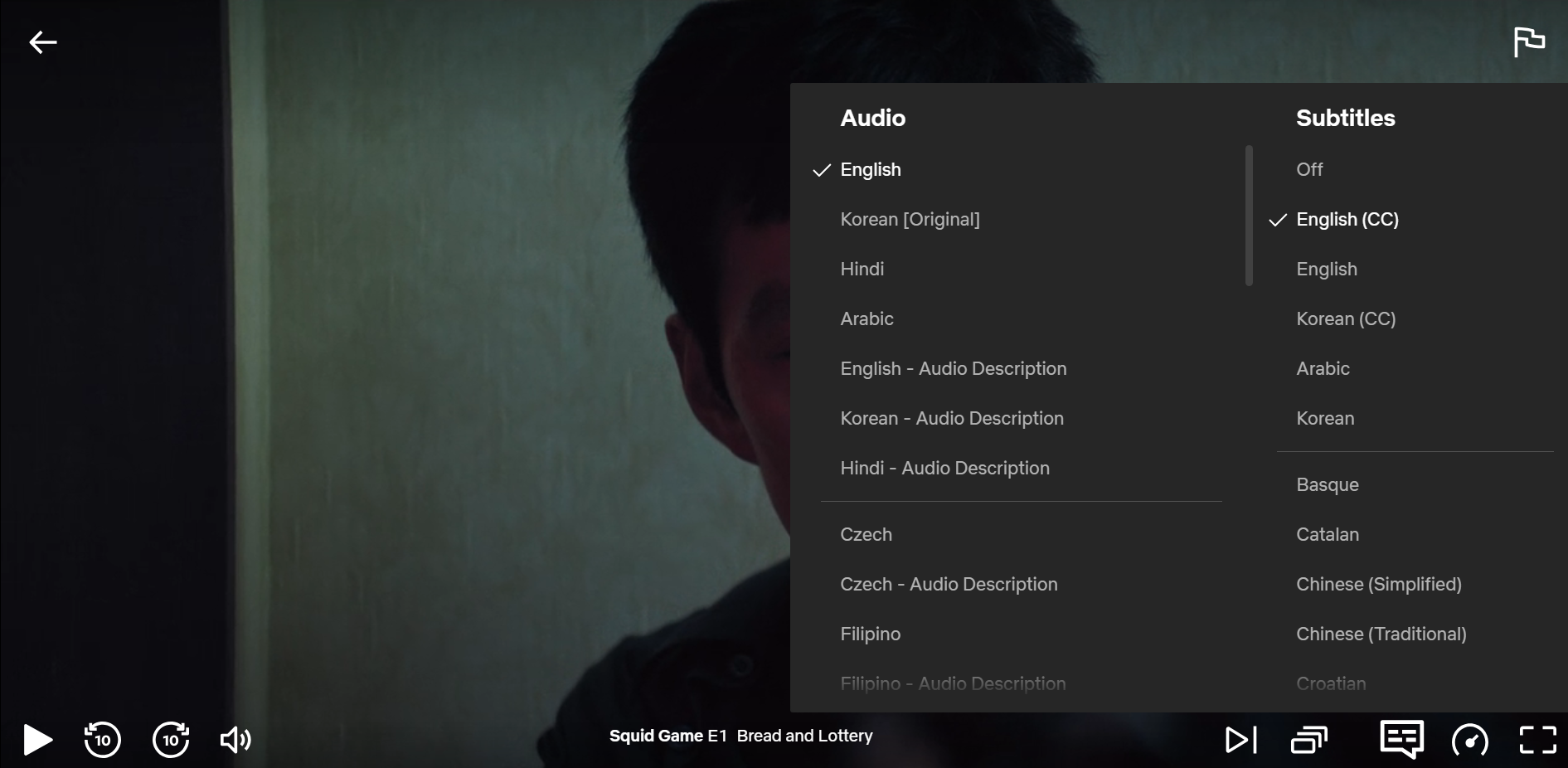
If you are watching Dark, you should set the language to German and subtitles to English.
If you want extra details like sound effects, you can turn on Closed Captions (CC).
You can also change your preferred language in your account settings. Simply click on your account in the top right corner and go to edit settings.
From there, you can set out your preferred language for audio and subtitles. You can also change your display language, which is set to English. Some settings menus may vary depending on the device.
The process to change subtitles on Netflix is almost the same for all Smart TVs.
On newer Smart TVs, you can press Up on the remote while a show is playing. Then select the dialogue icon and choose subtitles or audio.
If you have a Fire TV remote, then you can also change your subtitles using the stick rather than opening the application menu.
To change your preferred language and subtitles, you can do this in the application. However, to access more options, you have to log in to your account from a web browser.
For Android or iPhone, you can play something on Netflix and change the settings. But you cannot do this from a title’s description page, like on Roku or FireTV Stick.
If you are watching on PC or Mac, you have two options. You can either change subtitles on the application or the web browser.
You can also watch with dubbed audio instead of subtitles.
If you always want Netflix to start with your chosen subtitle and audio language.
From now on, Netflix will automatically use these language settings for all movies and series across your profile.
If your subtitle text is too small to read, Netflix gives you the option to customize.
This is especially useful for people with vision difficulties or those who prefer larger, high-contrast text.
1. Can I turn off subtitles completely?
Yes, select “Off” in the Subtitles menu while watching.
2. Why don’t all shows have dubbing?
Licensing and production costs mean not every title is dubbed. Subtitles are usually available in more languages.
3. Can I watch Netflix with dual subtitles (two languages at once)?
Not officially — but third-party extensions like Substital (for Chrome) allow it on PC.
4. Do downloaded Netflix titles keep subtitles?
Yes, but only in the subtitle/audio settings you chose when downloading.
5. Can I change subtitle settings on Kids’ profiles?
Yes, but some options are restricted for simplicity.
If you’re interested, check out our complete Streaming Guide, where we cover different features and options to help you. You can also change your Netflix region to access movies and TV shows from other countries.

I’m the writer behind Fandom Watch, where I share news, guides, and fan theories about shows, anime, and the wider world of pop culture. My goal is to make fandom fun and accessible for everyone, whether you’re a casual viewer or a die-hard fan.







May 11, 2026

August 24, 2025
October 8, 2025

August 24, 2025