10 Best Shows Like Stranger Things
August 28, 2025
The Stranger Things journey, which began in 2016, is finally coming to an end…

Watching your favorite shows on Netflix and Prime Video can be frustrating when your internet slows down. Pixelated videos, buffering, and poor-quality visuals can ruin the experience. The good news? You don’t have to settle for “SD forever.” With a few smart tweaks, you can dramatically improve streaming quality—even on slower connections.
In this guide, you will learn about the following:
This guide will walk you through:
Let’s dive in.
Adaptive Streaming & Bitrate Switching
Netflix, Prime Video and other streaming services use adaptive streaming, which automatically adjusts video quality based on your internet speed, device capabilities, and buffer status.
If your connection slows down, the service drops the quality to prevent buffering. The goal is smooth playback, not necessarily high definition.
Buffering and Rebuffering
Buffering matters a lot! Low buffer levels can cause choppy video or pauses. When buffer levels are low, videos can become choppy or pause unexpectedly. Advanced users sometimes take extra steps to reduce rebuffering, especially when frequent quality drops make playback unstable.
Server Distance & CDN
Services like Netflix use Open Connect and Prime Video uses similar CDNs (Content Delivery Networks) to get content closer to you by optimizing the distance between servers and users.
Streaming services may already have servers nearby. But if the last-mile connection or the link from the ISP is really weak, then it would not help to have a nearby CDN. They will focus more on the link and the regional server load.
Before tweaking anything, know what your connection needs:
| Quality | Required Speed (Mbps) |
|---|---|
| SD (480p) | 1.5-3 |
| HD (720p/1080p) | 5-8 |
| Full HD | 8-10 |
| 4K/Ultra HD | 15-25+ |
Netflix recommends 3 Mbps for SD, 5 Mbps for HD, and 25 Mbps for Ultra HD. If your speed fluctuates below these, optimizations are key.
Before making changes:
Use Wired Connections
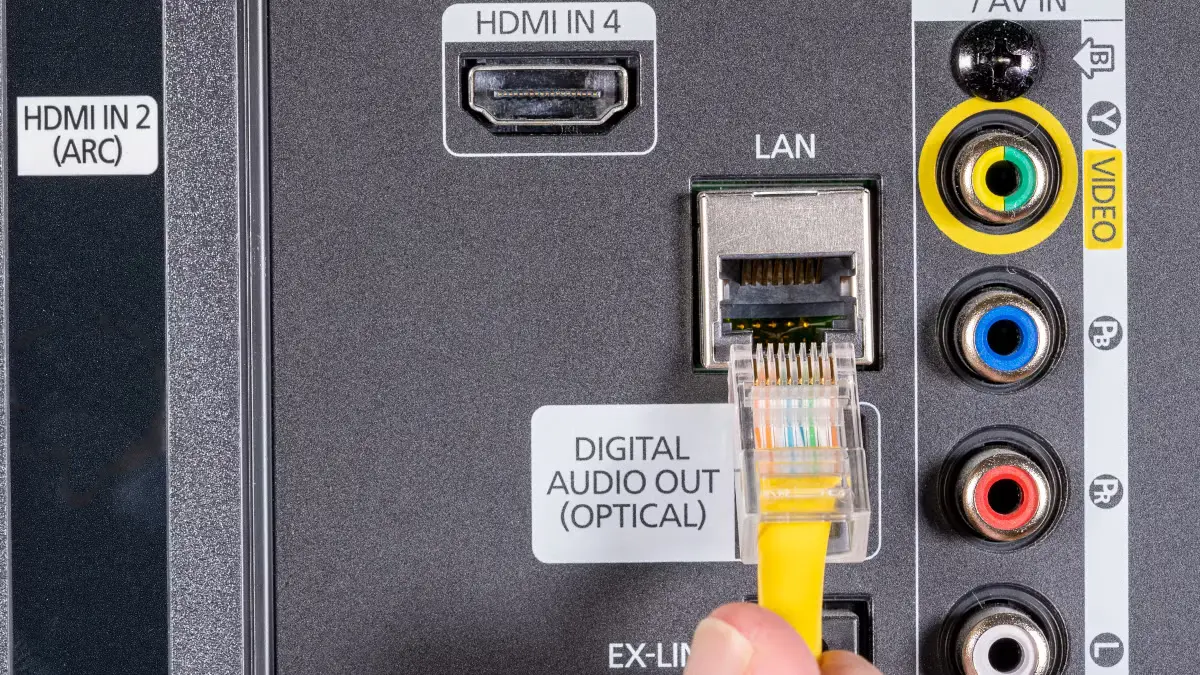
Whenever possible, use an Ethernet connection. It’s faster and more reliable than Wi-Fi, whether you’re streaming on a TV, set-top box, or PC.
If your device is far from the router, there are a few alternatives:
Improve Wi-Fi
If Wi-Fi is your only option:
Reduce Network Load
Ensure other devices or apps are not saturating your available bandwidth. These may include software updates, backups, or large downloads. The more you free up the available pipe, the better the performance will be.
Restart & Clear Cache
Some issues are simply the result of a glitch in the system and are not worth the excessive time or attention. Sometimes a simple restart of the device or app, logging out and logging in again or clearing the cache can fix glitches and improve consistency.
When using Netflix under constrained conditions, these are the best tweaks you can implement:
1. Adjust Playback Settings:
2. Test In-App Speed:
3. Use the Native App:
4. Browser Tweaks:
5. Casting & AirPlay:
6. Offline Downloads:
Even though Prime Video is more limited than Netflix, some settings adjustments and customizations can help the user experience.
1. Streaming Quality Settings:
2. Reinstall or Clear Cache:
3. Pause to Buffer:
4. Offline Downloads:
5. Lower Framerate/Codec
1. Use a Faster DNS
Switching to a faster DNS provider like Google (8.8.8.8) or Cloudflare (1.1.1.1) won’t increase your overall internet speed, but it can reduce small delays and improve how quickly streaming requests connect.
2. Enable QoS (Quality of Service) and Bandwidth Prioritization
Most modern routers let you manage how bandwidth is distributed.
This ensures your streaming device gets stable bandwidth even when other devices are active on the network.
3. Use VLANs or Guest Networks
If your router supports it, create a dedicated VLAN or guest network for your streaming devices. This isolates them from other home traffic, preventing slowdowns caused by background downloads or connected gadgets.
4. Upgrade Your Router
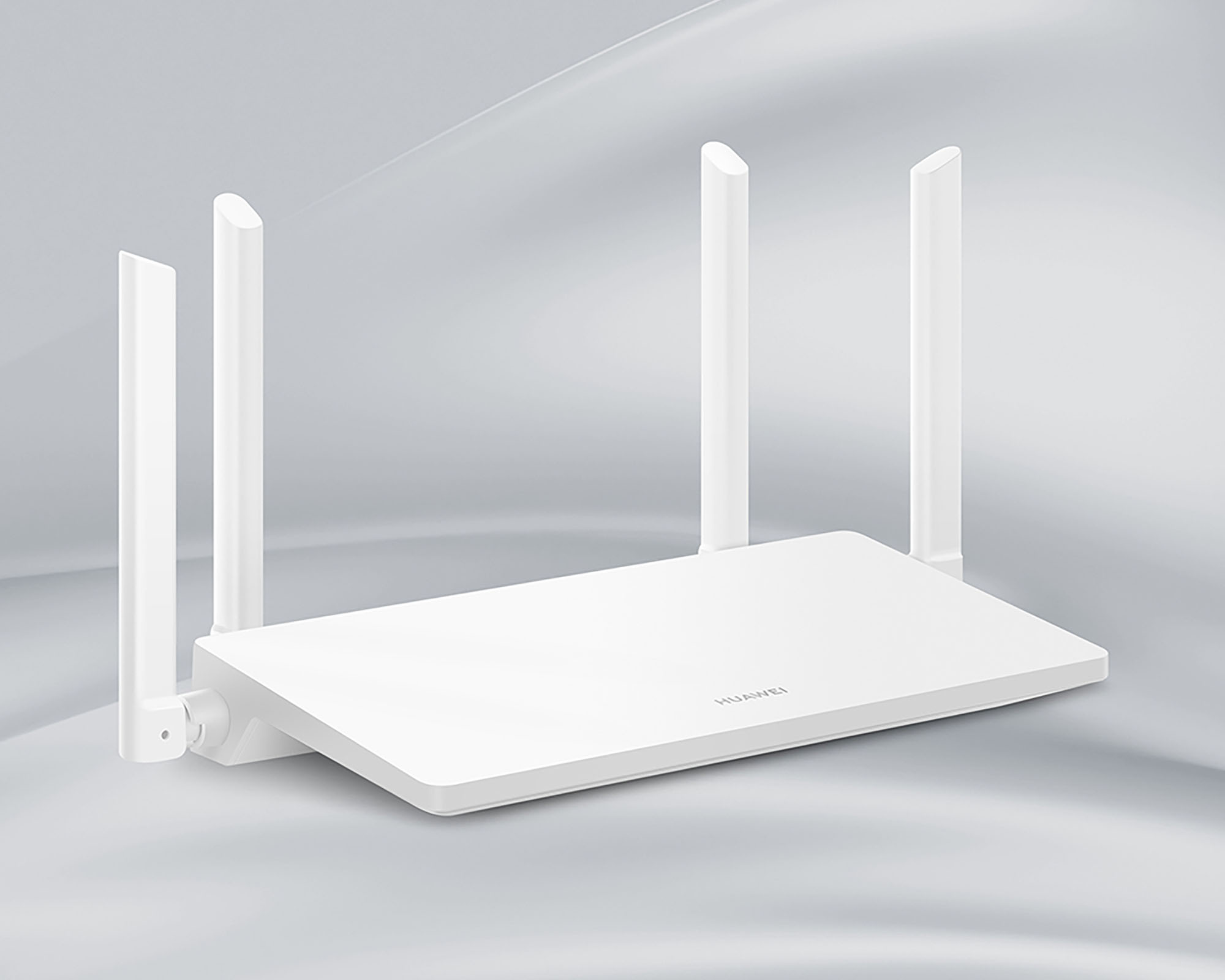
If your current router is outdated, consider upgrading to one with Wi-Fi 5, Wi-Fi 6, or Wi-Fi 6E support. Dual-band, tri-band, or mesh routers with QoS can handle multiple devices more efficiently and provide better coverage throughout your home.
5. Advanced Tuning (for Experienced Users)
For advanced users, adjusting MTU (Maximum Transmission Unit) or TCP window scaling can help improve performance on unstable ISP connections. Lowering these values slightly can reduce packet fragmentation and enhance overall throughput but proceed carefully, as incorrect settings may cause connectivity issues.
Keep a log of your changes to monitor your adjustments and to fine-tune:
Buffering frequency
Time to first frame
Bitrate changes
Streaming stability at different times
1. Test your speed and latency.
2. Update all firmware and apps.
3. Use Ethernet if possible.
4. Enable QoS and prioritize streaming devices.
5. Netflix: Set playback to Low/Standard.
6. Prime Video: Set streaming quality to Good/Better.
7. Clear cache and restart apps/devices.
8. Pause video to buffer if needed.
9. If still slow, drop resolution or download offline.
10. Consider upgrading your router/network if possible.
Q: What is the minimum speed for HD streaming on Netflix or Prime Video?
A: The Netflix Help Center states that to stream in HD, you will need at least 5 Mbps. Prime Video typically allows for streaming in good or better modes around 3-5 Mbps (1080p possible, but may lag if unstable.
Q. Why does my video keep buffering even with fast internet?
A. Buffering can happen due to temporary network congestion, poor Wi-Fi signal, or high CPU usage on your device. Even with fast speeds, instability or latency can interrupt playback.
Q. What internet speed do I need for HD or 4K streaming?
A. For most platforms:
Keep in mind that multiple users streaming simultaneously will need extra bandwidth.
Q: Why does Netflix drop quality despite a fast Speedtest?
A: Netflix and other streaming services adjust for short-term drops to prevent buffering. If your connection drops even for a short time, Netflix will adjust your stream to a lower quality just to make sure you don’t run into a buffering issue.
Q: Do VPNs or proxies affect streaming?
A: Yes! They can slow down your connection or reroute traffic through congested paths. If you are using one, then try disabling it to test. However, they can also be useful for changing your Netflix region to access shows and movies from other countries.
Q: Why does browser playback look worse than the app?
A: Some browsers limit the maximum resolution or they don’t use the most efficient codecs. A browser may have worse hardware acceleration or other optimizations than a native app, which will cause worse playback overall.
Q. Should I use 2.4 GHz or 5 GHz Wi-Fi for streaming?
Q. Is it better to download movies instead of streaming?
A. If your connection is unstable or you travel often, downloading can be smoother as you’ll get full-quality playback without buffering.
Q: Is upgrading my internet the only real solution?
A. Not always. Upgrading will get you better speeds, which does help. But smart tweaks like QoS, Ethernet, app settings, and downloads can significantly improve performance without extra costs.
Even on modest-speed connections, a combination of device tweaks, app settings, network optimization, and offline downloads can dramatically improve your streaming experience on Netflix and Prime Video.
Related: How to Watch Netflix for Free or Cheap in 2025

I’m the writer behind Fandom Watch, where I share news, guides, and fan theories about shows, anime, and the wider world of pop culture. My goal is to make fandom fun and accessible for everyone, whether you’re a casual viewer or a die-hard fan.







August 28, 2025

April 1, 2026
August 24, 2025

September 17, 2025